

How to Use Codex in Slack with Your Whole Team
 Dott
Someone on your team just asked if you can put Codex in Slack so non-engineers can ask questions about the codebase and engineers can kick off small fixes from a thread. If your engineers already live in OpenAI's coding agent (or split their time across Codex and Claude Code), this sounds like a five-minute app install. In practice, you end up choosing between three different architectures: OpenAI's official Slack app, a homemade bot on a server, or bridging Slack to the Codex CLI already running on your engineers' machines.
The deciding question for a team is whose Codex account runs each request. That one detail controls who in the company is allowed to ask a question, whether a teammate can reply in the same thread to steer the work, what repositories and local tools the agent can reach, and how many seats or API tokens you pay for at the end of the month.
By the end, you'll have a working Slack setup where your team can mention an agent, run real repository work through Codex, and get answers or pull requests back in the thread. Expect setup to take about 30 minutes for the official app or a local machine bridge, and an afternoon if you wire up your own bot.
Key takeaways
- The official bot is now
@ChatGPT: OpenAI moved Slack requests from@Codexto@ChatGPT, which delegates coding questions to a separate Codex Cloud task. - Official app requests run on the requester's own account: Every person who mentions
@ChatGPTin Slack needs their own ChatGPT account with Codex Cloud access, a linked Slack connection, and access to a published cloud environment. - Sharing one personal login on a server breaks OpenAI's terms: If you build or self-host a bot for a channel, authenticate it with an OpenAI API key (and pay per token) or Enterprise access tokens.
- Running Codex on teammates' machines keeps local tools and plans: Tools like Merlin route Slack mentions to Codex on your engineers' computers, keeping usage on the machine owner's plan and giving the agent access to local repos and MCP servers, provided the machine is awake.
- Pick your setup by who asks and who pays: Use the official app if everyone already has a ChatGPT Business seat, an API-key bot for a single channel experiment, or teammates' machines if you want the whole company asking questions against real dev environments.
What Codex in Slack does today
If you search for a Codex Slack bot, most tutorials still tell you to mention @Codex. OpenAI has since consolidated its Slack app under @ChatGPT (Use ChatGPT in Slack, seen on November 11, 2026). When you mention @ChatGPT in a channel and Cloud delegation is enabled, ChatGPT hands repository work off to a separate Codex Cloud task and posts the result back to the Slack thread.
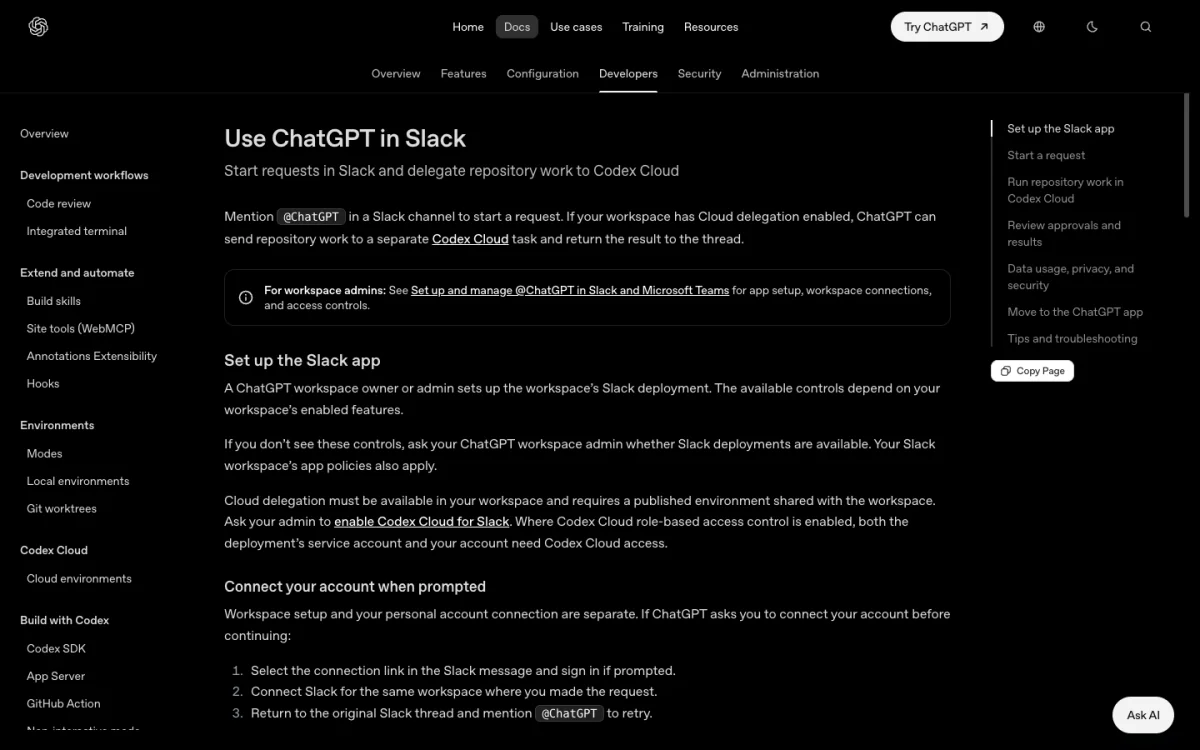 The official Codex Slack integration now answers to @ChatGPT and sends repository work to a separate Codex Cloud task.
That cloud handoff shapes everything about how a team uses it. Each coding request spins up a fresh virtual machine in OpenAI's cloud (2 vCPU and 8 GiB of RAM on Plus, or 4 vCPU and 16 GiB on Pro, Business, and Enterprise, per the cloud environments docs). Because it runs in a fresh cloud box, it continues working even if you close your laptop. It also means your local skills, local MCP servers, and self-hosted GitHub Enterprise Server aren't there.
The biggest catch for a team is how accounts work. In OpenAI's app, the coding task runs as the requesting user. Every person who wants to ask @ChatGPT a question in Slack needs their own ChatGPT seat and has to link their Slack account. When a second teammate replies in the same Slack thread to add context, OpenAI's docs note that a request using another account may start a separate coding task. You hit a similar wall with Claude Code in Slack when trying to turn a single-player cloud sandbox into a multiplayer team thread.
Three ways to set it up
Before you touch any admin settings, compare the three ways to wire Codex into Slack. Look at the second and sixth rows first: whose account runs the request, and what happens when a teammate replies in the thread.
| Official @ChatGPT app | Homemade bot | Codex on teammates' machines (for example Merlin) | |
|---|---|---|---|
| Where Codex runs | Codex Cloud, one task per request | One host you run (a server or spare Mac) | The machines of the engineers who connect them |
| Whose account runs a request | The requester's own ChatGPT account | One API key (a shared personal login breaks OpenAI's terms) | The machine owner's own Codex login |
| What you pay | A ChatGPT seat per person who asks (Business $20 to $25 per user per month) and their usage | API tokens per task, plus hosting and your time | Each engineer's existing Codex plan, plus Merlin from $9 per workspace per month |
| Who can ask | People with a seat and a linked account | Anyone in the channel | Workspace members, on runtimes their owners opened to them |
| What it can reach | Repos in a published shared cloud environment and its secrets | Whatever is on the host | The owner's local repos, tools, MCP servers and credentials |
| A teammate replies in the thread | Starts a separate task under their account | Whatever you build | Steers the same task |
| Linear | Separate @Codex integration | Build it yourself | Same agent, delegated from Linear |
| Memory | None at launch, AGENTS.md only | Build it yourself | Per-channel team memory, opt in |
| Main catch | Two admins, a seat and a linked account for every requester | You own the Slack plumbing, retries and security | Machines must be online, and two bills |
What you need
Depending on which path you pick below, gather these pieces before you start:
- For the official
@ChatGPTapp: A ChatGPT workspace on a Business ($20 per user per month billed annually, or $25 monthly) or Enterprise plan (Codex pricing, seen on November 11, 2026), a ChatGPT workspace admin, a Slack workspace owner or app manager, and a GitHub cloud repository configured as a shared Codex Cloud environment. - For a homemade bot: A server or always-on machine with Node.js or Python, the Codex CLI installed (
codex --version), a Slack app permission to install bots in your workspace, and an OpenAI API key with billing enabled. - For Codex on teammates' machines: At least one engineer machine (macOS, Windows, or Linux) with the Codex CLI installed and signed in (
codex login), a Slack account able to install apps, and a Merlin workspace (14-day free trial, then from $9 per month).
How to set up @ChatGPT
Use this path if every person who will talk to the bot in Slack already has a paid ChatGPT seat on your company workspace and your repositories live on cloud GitHub.
1. Check the plan and admins
Check that your team is on a plan that includes the Slack cloud integration and that your requesters have enough usage headroom. While OpenAI's pricing table lists the Slack integration on Plus, Pro, Business, and Enterprise, the admin deployment docs walk through a workspace-level rollout managed from the OpenAI admin console, which means Business or Enterprise in practice. Keep in mind that local CLI messages, ChatGPT Work, and cloud tasks all draw from the same usage pool, and cloud tasks burn through allowances faster than local messages.
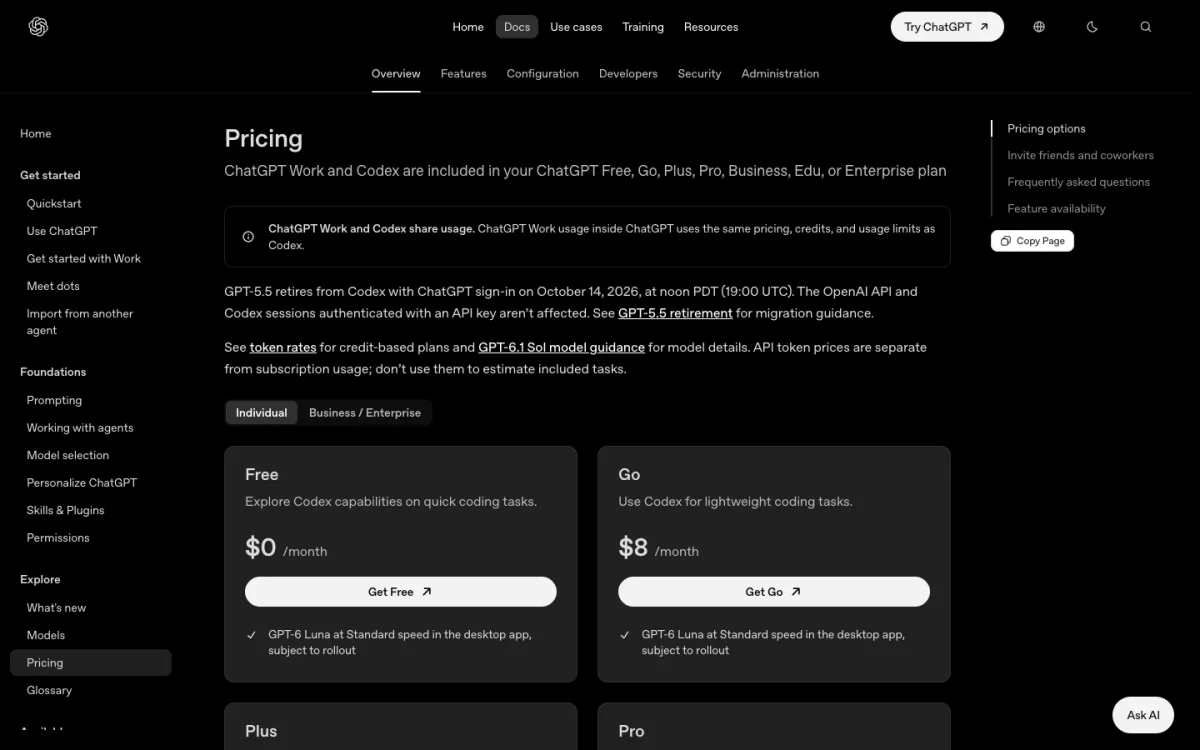 Slack requests draw on the same allowance as everything else the requester does in ChatGPT and Codex.
Make sure you have both a ChatGPT workspace admin and a Slack workspace owner (or app manager) available, because one starts the connection and the other approves it.
2. Connect Slack
Have your ChatGPT workspace admin open the OpenAI admin console, select your workspace, open Agents, and choose to connect Slack. This creates one surface per Slack workspace (if you run Slack Enterprise Grid, each grid workspace gets its own surface). Next, have your Slack admin approve the requested permissions and install the app. If your workspace previously installed the older @Codex app, your Slack admin still has to approve the updated permissions before @ChatGPT will respond.
Watch out when restricting channels: choosing Selected channels only limits where the bot works in public and private channels, and does not block direct messages.
3. Share a cloud environment
Installing the Slack app only gives you chat, and coding work takes a separate switch. In the admin console, enable Codex Cloud for Slack. Then, set up a cloud environment for your repository and publish it to the team: open the environment settings, go to Privacy, and change Who can use from Only me to your workspace. Personal cloud environments are ignored by the Slack integration.
If you turn on role-based access control for Codex Cloud, grant access to both the Slack surface's service account (which finds environments) and every individual user who will make requests.
4. Link each account
Ask each teammate who wants to use the bot to mention @ChatGPT in an enabled channel. The first time they do, @ChatGPT replies with a connection link. They click the link, sign in to their ChatGPT account for that workspace, and then mention @ChatGPT a second time in the original Slack thread to kick off the actual work.
5. Name the repository
Start a thread by naming the exact repository or shared environment so the service account picks the right sandbox:
@ChatGPT investigate the failing checkout tests in acme/storefront and propose a fix.
To follow up on that work from the same user account, reply in the same thread:
@ChatGPT add a regression test for the fix and summarize the checks you ran.
A private Allow or Deny prompt may appear for the requester, along with Follow along and Cancel buttons. Once the task finishes, review the changes in Codex Cloud before committing or opening a pull request. Because @ChatGPT in Slack has no persistent memory across threads, put any standing instructions for the repo inside an AGENTS.md file in the repository root.
How to build your own bot
If you have non-engineers without ChatGPT seats who need to ask questions in one channel, or you need Codex to reach a private network that Codex Cloud can't see, you can run a bot on your own server or spare Mac.
1. Choose an allowed login
Before you write any code or clone a GitHub bridge, decide how the bot will sign in to Codex. Many weekend tutorials tell you to run codex login with your personal ChatGPT Plus or Pro account on a Linux box and let the whole company share it through Slack. Both OpenAI's Terms of Use and Business Terms forbid sharing individual login credentials across multiple users.
For a shared bot, OpenAI's authentication docs state that API keys are the recommended default for automation (Enterprise workspaces can also mint Codex access tokens for scripts and runners). Export an API key on the host machine. On API pricing (seen on November 11, 2026), gpt-6.1-sol costs $2.00 per million input tokens ($0.10 cached) and $10.00 per million output tokens, while gpt-6-astra runs $10.00 input ($1.00 cached) and $50.00 output. As a rough illustration, a task that reads 500K uncached input tokens and writes 30K output tokens on gpt-6.1-sol costs about $1.30, with prompt caching dropping repeat reads significantly.
2. Create the Slack app
In the Slack API dashboard, create a new app for your workspace and turn on Socket Mode. Socket Mode connects outbound over a WebSocket using an app-level token, so you don't have to expose a public HTTP endpoint on your server. Under OAuth & Permissions, add the app_mentions:read and chat:write bot token scopes, subscribe to the app_mention event under Event Subscriptions, and install the app to your workspace.
3. Acknowledge, then run Codex
Slack's Events API expects an HTTP 2xx acknowledgement within three seconds, or it assumes your bot died and retries the event up to three times. In your event handler, acknowledge the mention immediately, post a "working on it" reply, and spawn the Codex run asynchronously.
You have two ways to drive local Codex from code (skip the Codex app server, whose docs note that its WebSocket transport is experimental and its auth isn't permitted for hosted services):
- The CLI in non-interactive mode: Run codex exec with
--jsonto stream JSONL progress events and--sandbox workspace-writeif you want it to edit files (the default sandbox is read-only, and the old--full-autoflag is gone). - The official SDK: Install the Codex SDK (
@openai/codex-sdkin TypeScript oropenai-codexin Python) and callcodex.startThread()andthread.run().
codex exec --json --sandbox workspace-write "investigate the failing checkout tests and propose a fix"
4. Map threads to sessions
So teammates can reply in a Slack thread without starting from scratch, store a mapping in a small SQLite table or JSON file between Slack's thread_ts timestamp and the Codex session or thread ID. When a new message arrives in an existing thread, resume that session instead of starting a new one:
codex exec resume "$SESSION_ID" --json --sandbox workspace-write "add a regression test for the fix"
In the TypeScript SDK, pass the stored ID to codex.resumeThread(threadId).
If you don't want to write the Slack Socket Mode and session-mapping code yourself, open-source bridges like cc-connect (16.3k stars on GitHub as of November 11, 2026) or smaller repos like earonesty/codex-slack already wire Slack threads to local Codex sessions over Socket Mode.
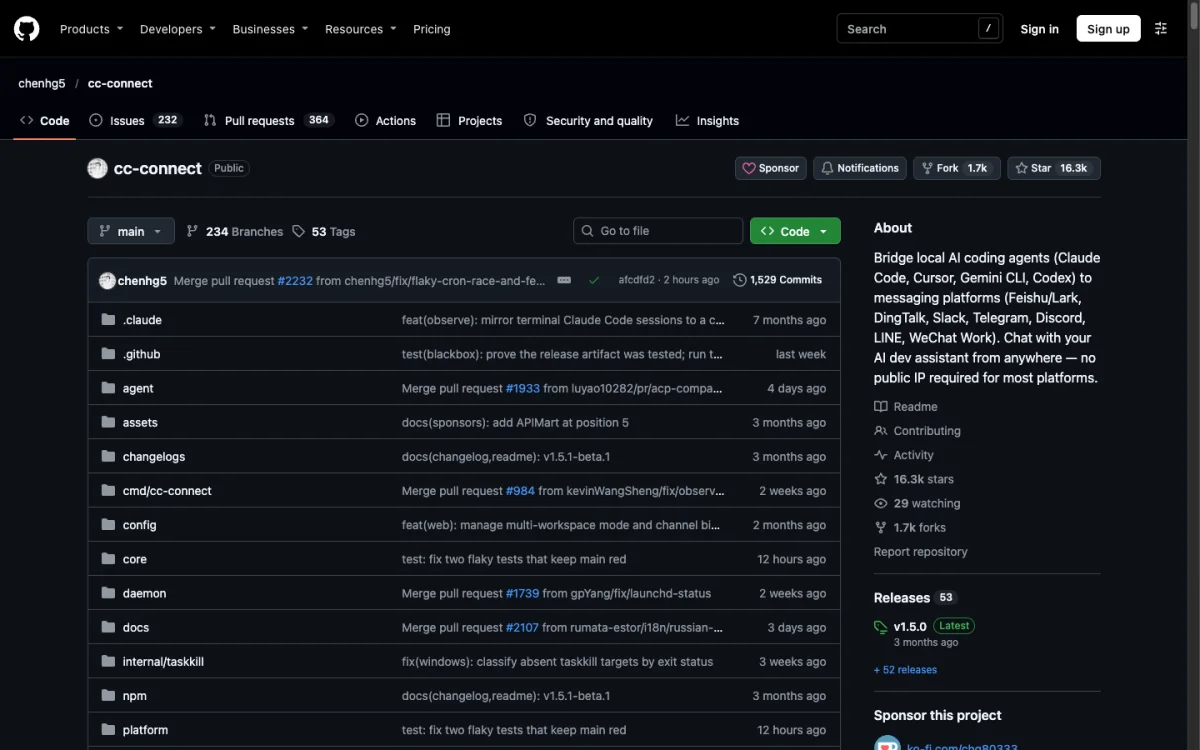 Open-source bridges like cc-connect run Codex on one host machine, under whatever login that machine has.
Just watch how you authenticate that host: every open-source bridge runs all Slack users through the single host's Codex environment, so configure that host with an API key.
How to use teammates' machines
If your engineers already pay for ChatGPT Plus, Pro, or Business plans and have Codex set up locally with their repositories, credentials, and MCP servers, you can connect those machines directly to Slack with Merlin. Instead of spinning up a blank cloud VM or maintaining a shared bot server, requests route to an engineer's machine and run on that machine owner's Codex login.
1. Install Merlin
First, check that Codex works in your terminal (prerequisites):
codex --version
codex login
Download the Merlin desktop app (macOS or Windows) or the Linux CLI daemon and sign in to your Merlin workspace. Merlin detects the local Codex installation and registers your computer as a device without asking for an OpenAI API key.
2. Set runtime access
Open the Merlin web app and go to Settings > Devices (devices and runtimes) to see your connected computers, check their available runtimes (Codex and Claude Code), and pick your preferred runtime. By default, a new runtime is set to private, meaning only you can trigger it from Slack.
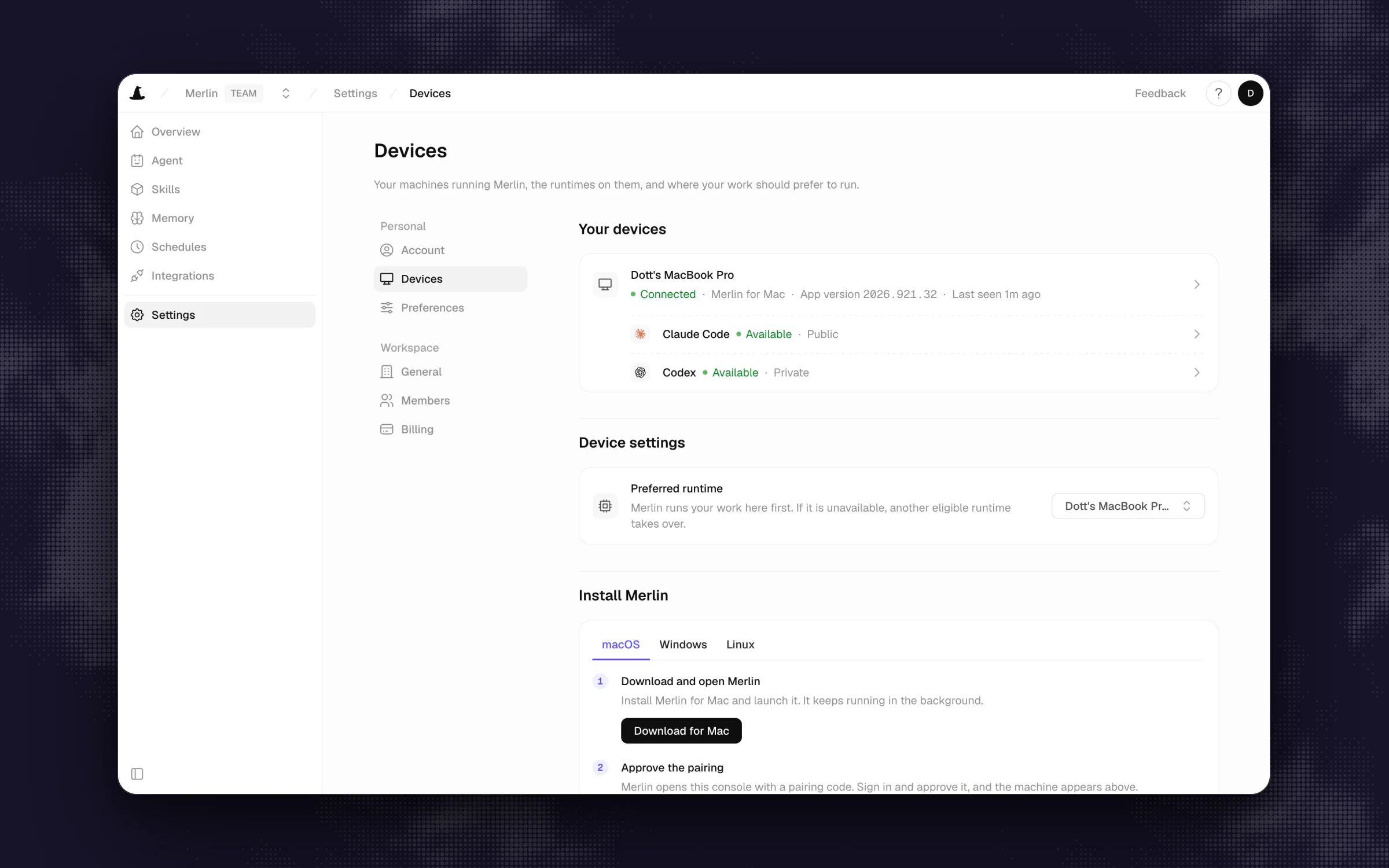 In Merlin each machine reports its Codex and Claude Code runtimes, and each person picks the one their requests should prefer.
If you want non-engineers or teammates to run requests on your machine, open Agent in the web app, pick your device, and open the Codex runtime page. From there, flip its access setting to public, pick the default model and reasoning effort, and set concurrency (from 1 to 16 parallel tasks, with 4 as the default). Keep in mind that when a teammate runs a task on your public runtime, it uses your local files and tools and draws from your Codex plan's usage allowance.
3. Connect Slack channels
In the Merlin web app, connect your Slack workspace (Slack guide). Add public channels from the Slack integration page, and invite the bot to private channels by typing /invite @Merlin in the channel. Each channel has three response modes: Mention only, Thread follow-ups (unmentioned replies in an existing Merlin thread may continue work), and Proactive (it may chime in when it can help). Thread follow-ups and Proactive only take effect while a workspace owner or admin has the workspace Proactive responses setting turned on.
4. Ask in a thread
Any workspace member who can use an available runtime (their own, or one its owner made public) can now mention @Merlin in a channel to ask a question or ask for a code change. You can also ask for a specific runtime or effort level right in the message (for example, "use Alice's" or "use max effort").
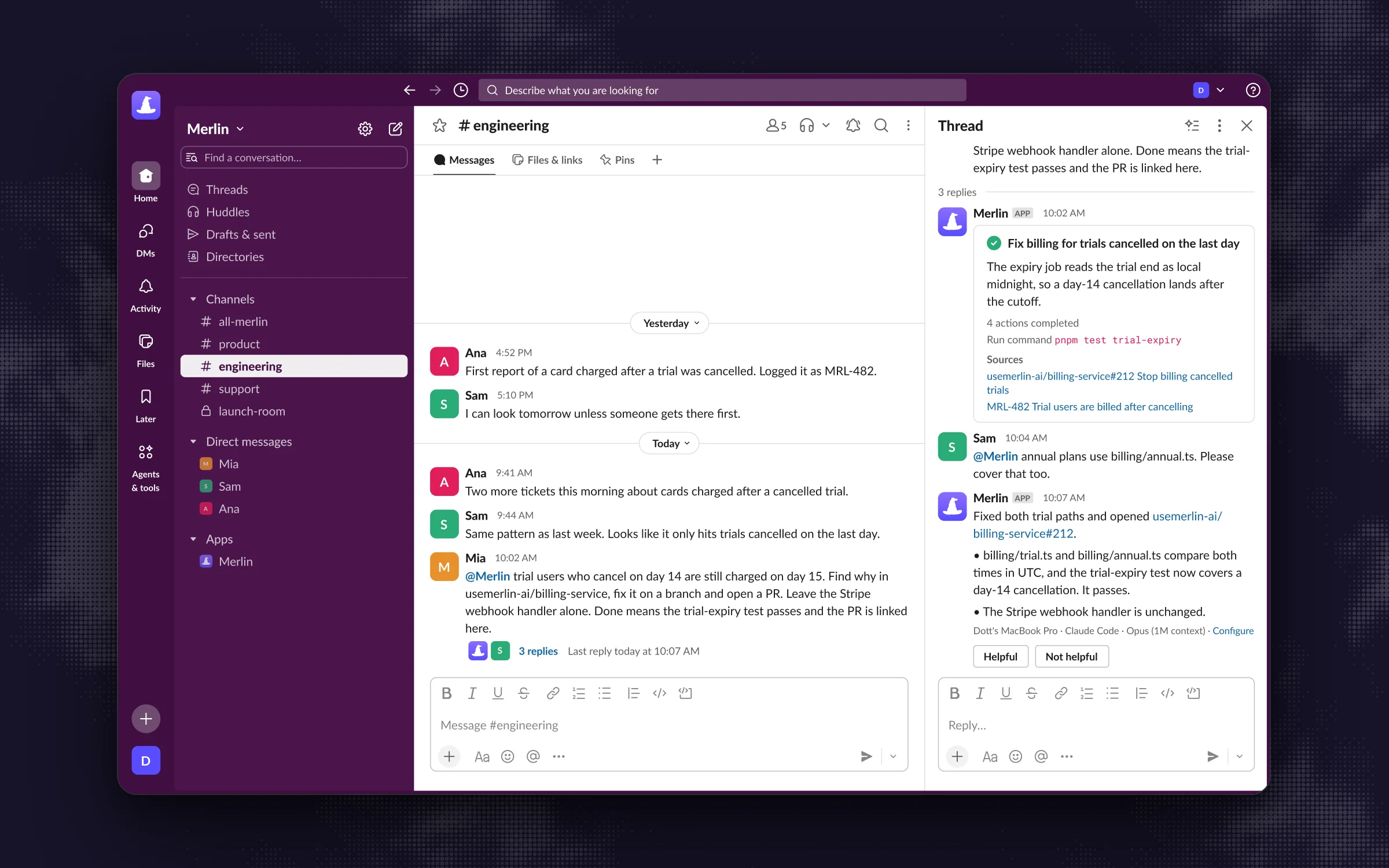 A teammate's follow-up in the thread steers the same task instead of starting a new one.
Unlike the official @ChatGPT app, when a second teammate replies in the same Slack thread with extra context (like Sam pointing out that annual plans need the same fix in the screenshot above), their reply steers the running task instead of forking a separate session under a second account.
5. Add memory and Linear
If you want the agent to remember facts across threads without editing AGENTS.md every time, an owner or admin can enable memory, which saves short, durable notes scoped to each Slack channel (public channel notes help the whole workspace, while private channel notes stay in that channel). You can also connect Linear to the same Merlin workspace so delegating a Linear issue runs on the exact same Codex machines, and Linear tasks read the same public-channel memory as Slack tasks when memory is on. By contrast, OpenAI's Linear integration is a separate @Codex app running on older cloud environments that doesn't share setup or memory with @ChatGPT in Slack.
The trade-offs to plan around with Merlin: at least one connected machine has to be awake and online to take work, your team has two bills (each engineer's own Codex plan plus Merlin's workspace plan starting at $9 a month on pricing), and there is no free tier beyond the 14-day trial.
Common problems
@ChatGPTdoesn't respond when mentioned in Slack: First confirm that ChatGPT is enabled for that channel and that you mentioned@ChatGPTexplicitly. If your workspace used@Codexbefore, existing installs keep working for a while, and a Slack admin still has to approve the new permissions for@ChatGPT.@ChatGPTsays it can't find the repository or environment: Make sure the Codex Cloud environment isn't set to Only me. Open the environment's Privacy settings and set Who can use to your workspace, and spell out the repository name in your Slack prompt.- A teammate replied in a
@ChatGPTthread and lost the context: In the official app, each task belongs to the requester's account. Either have the original requester send the follow-up prompt, or summarize the issue, expected outcome, and repository in the new teammate's message so their task has enough context. - Your homemade bot replies three times to the same Slack message: Your server took longer than three seconds to return HTTP 200 to Slack's event webhook. Acknowledge the webhook first, then call
codex execor the SDK asynchronously. - Merlin says no runtime is available: The engineer laptop hosting the Codex runtime is asleep, offline, or still set to private. Either wake the machine, make the runtime public from its runtime page, or install the Merlin CLI daemon on an always-on desktop or dev box.
FAQ
Yes, though it is now called @ChatGPT in Slack rather than @Codex. When a workspace admin enables Cloud delegation, mentioning @ChatGPT in a Slack channel hands coding and repository questions off to a separate Codex Cloud task and replies in the thread.
OpenAI's pricing table includes the Slack cloud integration on Plus ($20 per month), Pro (from $100 per month), Business ($20 to $25 per user per month), and Enterprise plans. Because setup requires connecting a workspace through the OpenAI admin console, team deployments happen on Business or Enterprise plans, and every person who makes requests in Slack needs their own seat.
Not with OpenAI's official @ChatGPT Slack app, because signing in with an API key disables cloud features like Slack and GitHub code review. You can use an API key if you run your own Slack bot around the Codex CLI (codex exec) or the Codex SDK.
Not under OpenAI's terms, which prohibit sharing individual account credentials across multiple users. To let a whole team use Codex from Slack, either give every requester their own ChatGPT seat for the official app, run a custom bot on an OpenAI API key, or use a tool like Merlin where engineers run their own Codex logins on their machines and explicitly open a runtime to teammates.
OpenAI's @ChatGPT app runs in an isolated Codex Cloud virtual machine, so it cannot reach your local files, local skills, or local MCP servers. If your workflows depend on local repositories and MCP tools, run Codex on your own machines through a bridge like Merlin or a self-hosted runner.
OpenAI offers a separate @Codex integration for Linear that runs cloud tasks when you assign an issue, and it does not share environments or memory with @ChatGPT in Slack. If you want the same agent and setup across both tools, Merlin lets you mention @Merlin in Slack and delegate Linear issues to the same connected Codex runtimes.
If everyone who needs to ask a question already has a ChatGPT Business seat and your repos work cleanly in a cloud sandbox, the official @ChatGPT app is the cleanest fit. If you want a single-channel experiment billed by the token, a Socket Mode bot on an API key gets you there. And if your engineers already have Codex dialed in locally and you want the rest of the company asking in Slack and Linear, run Codex on your teammates' machines (Merlin is one way to do it).
Try Merlin for free
Hand work to Claude Code and Codex from Slack, Linear and GitHub. Free for 14 days, no API keys, no card required.
Get started for free