

How to Delegate Linear Issues to Claude Code and Codex on Your Own Machine
 Dott
Dott
The Linear issue is written, the acceptance criteria are clear, and any engineer on the team could open their terminal right now and hand it to Claude Code or Codex. What you actually want is to click Delegate in Linear and have that exact agent pick up the ticket on the machine where your repository, .env files, database tunnels and custom MCP servers already live.
Here is the catch. When you delegate an issue in Linear, where the work runs is decided by the agent app behind the name. Every built-in option runs in a vendor's cloud: Codex in Linear spins up a cloud chat against GitHub, and Linear's own coding sessions run Claude Code or Codex inside Linear's cloud sandbox. Anthropic does not ship a Linear agent for Claude Code at all (the feature request on GitHub has been open since December 2025). Meanwhile, the common advice to connect Linear's MCP server goes the opposite way: it lets your terminal read Linear, while Linear itself cannot hand anything to your terminal.
To click Delegate and run the work on hardware you control, you need a small bridge that registers as a Linear agent app and reaches your machine. By the end of this guide, you will be able to delegate a Linear issue to Claude Code or Codex, watch its progress live in the issue's agent session, and have the code run in a local checkout on your own machine. Once your agent already works in the repo, setup takes about 20 minutes.
Key takeaways
- Delegate and assignee are two separate fields in Linear. When you delegate an issue to an agent, a human stays the assignee and remains responsible for the work.
- Linear's MCP server is a pull tool. Adding
mcp.linear.applets a terminal session you started yourself read and edit issues, and Linear never sees an agent to delegate to. - Built-in Linear coding agents run in the cloud. OpenAI's Codex integration, Linear's coding sessions, Cursor, Tembo and Boxes.dev all execute in remote sandboxes.
- A local bridge needs a path to your machine. Self-hosted open-source Cyrus takes inbound Linear webhooks over a public URL, while Merlin keeps an outbound connection from a desktop app or Linux daemon.
- Local agents need an awake machine. If the host computer sleeps, nothing runs on it until it wakes up.
- Shared machines spend their owner's plan. A delegated run uses the Claude or ChatGPT login on the machine that picks up the work.
What you need
- Claude Code or Codex installed and working in your repository's directory (
claude --versionorcodex --version). Make sure it is signed in on a Claude Pro or Max plan, an Anthropic API key, or a paid ChatGPT plan that includes Codex. - A Linear workspace admin to approve installing the agent app (
actor=appwithapp:assignableandapp:mentionablepermissions). - Your repository cloned on the host machine, with Git credentials configured and
gh auth logincompleted so the agent can push branches and open pull requests. - A machine that stays awake and online. A desk Mac mini or an always-on Linux box works much better than a MacBook Pro that closes at 6 p.m.
Five ways to put Claude Code or Codex on a Linear issue
In Linear, delegating an issue sets an agent in the issue's delegate field while keeping a teammate as the assignee. For every cloud and local Linear agent side by side, see the best Linear AI agents roundup. When your goal is specifically running Claude Code or Codex on Linear tickets, your choices come down to five routes.
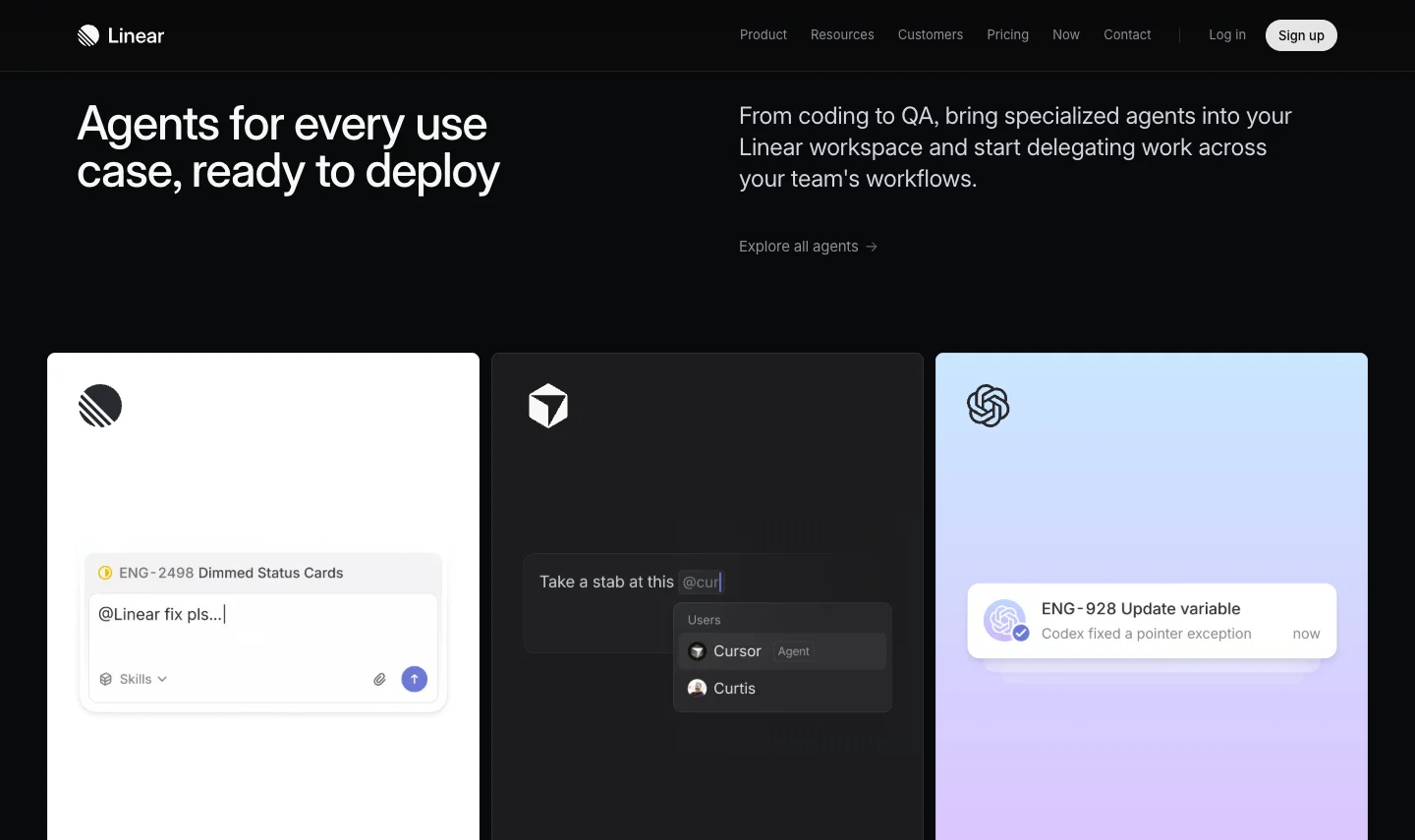 Linear's own agent page leads with Linear Agent, Cursor and Codex. All three do the work in a cloud sandbox.
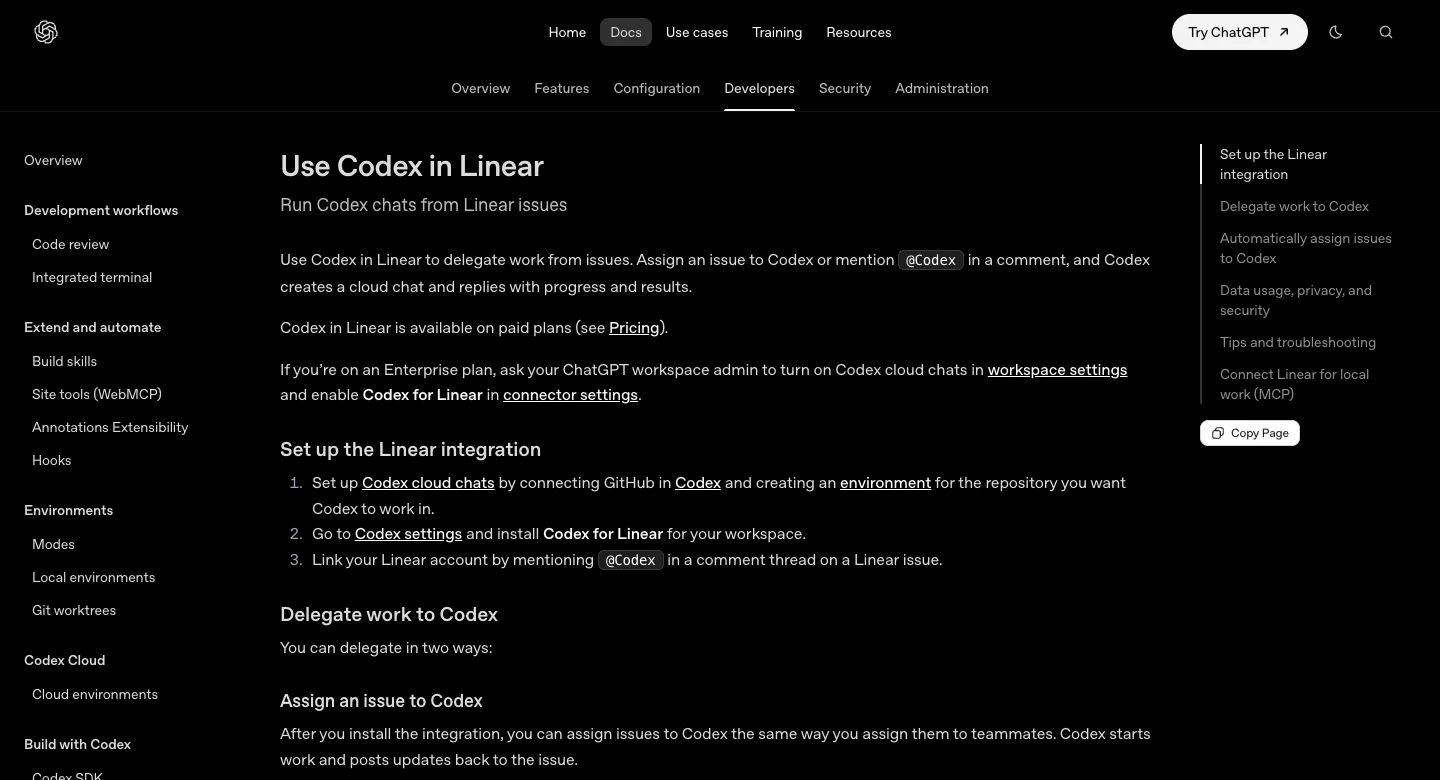 Codex in Linear starts a Codex cloud chat against a GitHub-connected environment. Your laptop is not involved.
| Route | Shows as delegate in Linear? | Where the code runs | What you set up | What it costs |
|---|---|---|---|---|
| Codex in Linear | Yes | OpenAI's cloud (a Codex cloud chat) | GitHub-connected Codex cloud environment, Codex for Linear | Included in paid ChatGPT plans that include Codex (Plus at $20 a month) |
| Linear coding sessions (Linear Agent with Claude Code or Codex) | Yes (Linear Agent) | Linear's cloud sandbox | One environment per repository in Linear settings | AI credits: model tokens at provider rates plus $0.25 per 20 minutes of sandbox time |
| Linear MCP in your terminal | No, you start the agent yourself | Your machine | One mcp add command | Free, runs on your Claude or ChatGPT plan |
| Cyrus | Yes | Your machine (or Cyrus's cloud) | Self-host: your own Linear OAuth app and a public webhook URL. Paid: cyrus auth | Community free. Pro $50 a month, Team $120 a month |
| Merlin | Yes | Your team's machines | Desktop app or Linux daemon, then Linear in Integrations | $19, $59 or $99 per workspace a month, model usage on each machine owner's plan |
Prices seen on October 31, 2026.
Only the last two rows show up as a delegate inside Linear while running the code on your own machine, so the steps below follow that setup.
How to delegate a Linear issue to Claude Code or Codex on your own machine
1. Check the agent can finish a task on its own
Before wiring up Linear, open a terminal in your repository and give Claude Code or Codex a small, real task. Ask it to run a test file, make a one-line fix and create a branch. If the agent stops to ask for tool approval, fails a pre-commit hook or misses an environment variable while you are watching, it will stall in the exact same spot when triggered from Linear.
cd ~/code/your-repo
claude --version
codex --version
Tip: commit a CLAUDE.md or AGENTS.md file in the root of your repository with the exact commands for installing dependencies, running linters and executing single test files.
2. Pick the bridge and the machine
To connect Linear to your local checkout, you have two main bridge architectures to choose from: Cyrus and Merlin.
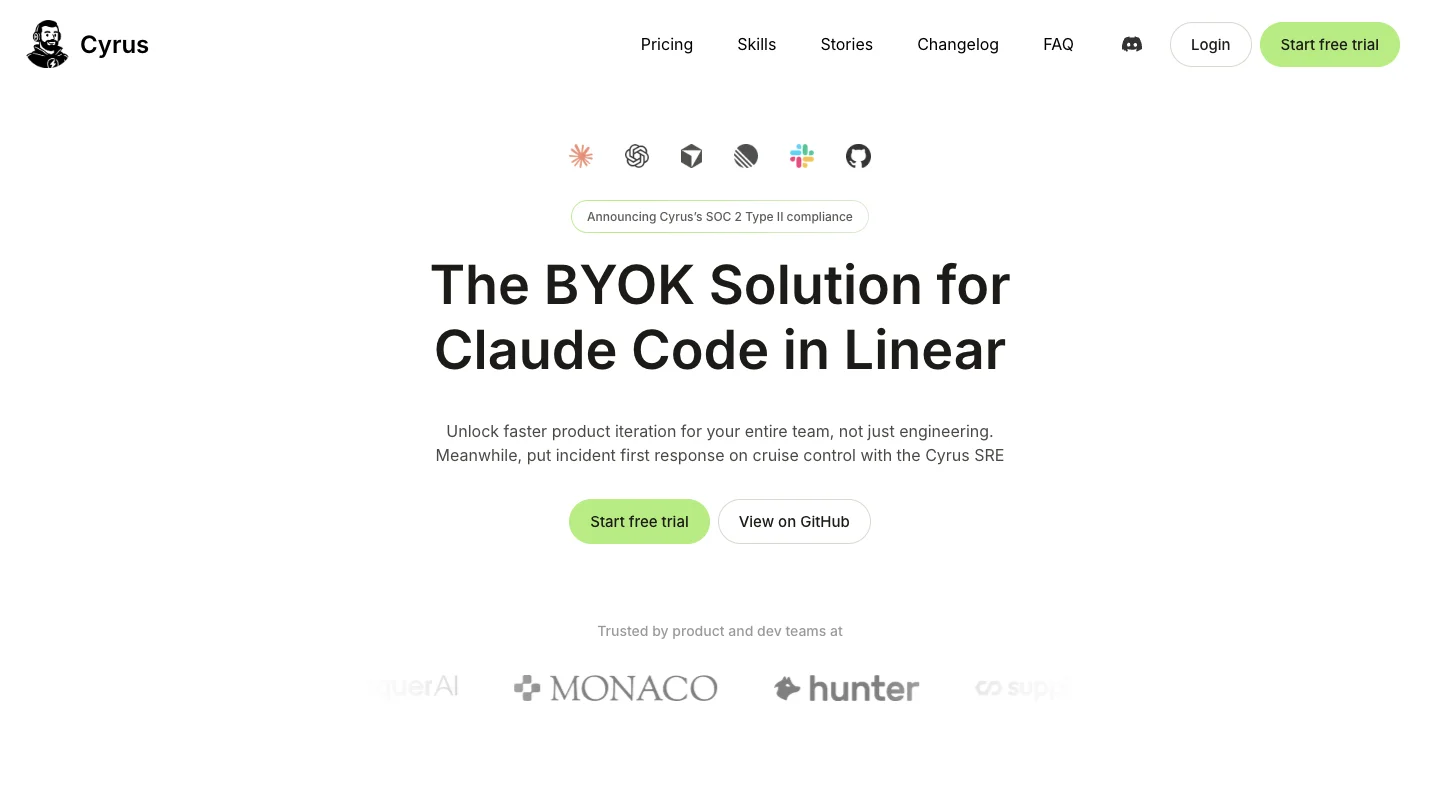 Cyrus is open source. Self-hosting it for free means running your own Linear OAuth app and a public webhook URL.
Cyrus is an Apache 2.0 open-source runner that creates an isolated Git worktree for each issue and supports Claude Code, Codex, Cursor, Gemini and Opencode. If you run its free Community edition, you create your own Linear OAuth app and expose a local port to receive Linear webhooks through Cloudflare Tunnel or ngrok. On its paid plans (from $50 a month), Cyrus hosts the networking and you connect your machine with npm install -g cyrus-ai and cyrus auth YOUR_TOKEN.
Merlin takes a client-outbound approach. You run the Merlin desktop app (macOS or Windows) or the Linux daemon, and it holds an outbound connection to Merlin's server, which receives the Linear events for it. Nothing listens on an inbound port on your computer, and you do not manage a webhook tunnel. The trade-off is that Merlin only moves between checkouts that already exist on that machine and never clones a new one, and there is no cloud fallback if every connected machine is asleep. The rest of the steps walk through Merlin's flow, noting where Cyrus differs.
3. Connect the machine
Install the Merlin desktop app on the machine that holds your repositories, or install the daemon if you are using a Linux server (installation guide). The client pairs your computer with your workspace and finds the Claude Code and Codex installations already on the machine.
Download the macOS or Windows app from /download, open Connection and click Connect this machine. On Linux, run:
curl -fsSL https://cdn.usemerlin.ai/daemon/install.sh | sh
merlin login
merlin status
Approve the device in your browser, then check that Claude Code or Codex reads Available.
 Once the machine is approved, each agent it found reports its own status. Both start Private.
Pitfall: if a runtime says Needs sign-in, it cannot accept delegated issues yet. Click Sign in beside it (or run merlin doctor on Linux) before moving on.
4. Install the agent in Linear
Next, register the agent inside your Linear organization and map your user account so Linear knows who is delegating work. In Linear, agents do not count as billable seats.
- In the Merlin web app, open Integrations, select Linear and authorize it for your Linear organization (a Linear workspace admin has to approve this step).
- Open Settings → Account and connect your personal Linear account. Everyone on the team who wants to delegate issues connects their own account here so runs stay tied to the person who asked (Linear setup docs).
On Cyrus Community self-hosted, you create your own Linear OAuth app, turn on agent session events in its webhook settings and point the webhook URL at your tunnel.
5. Decide who can use the machine
In Merlin, each Claude Code or Codex installation on a computer is called a runtime (devices and runtimes). Every new runtime starts Private, which means only the machine's owner can trigger runs on it.
Open Settings → Devices in the Merlin web app. If both Claude Code and Codex are installed on your machine, pick your Preferred runtime from the dropdown. If you want teammates to delegate Linear issues to your machine, open the runtime and change its Access so eligible workspace members may use it.
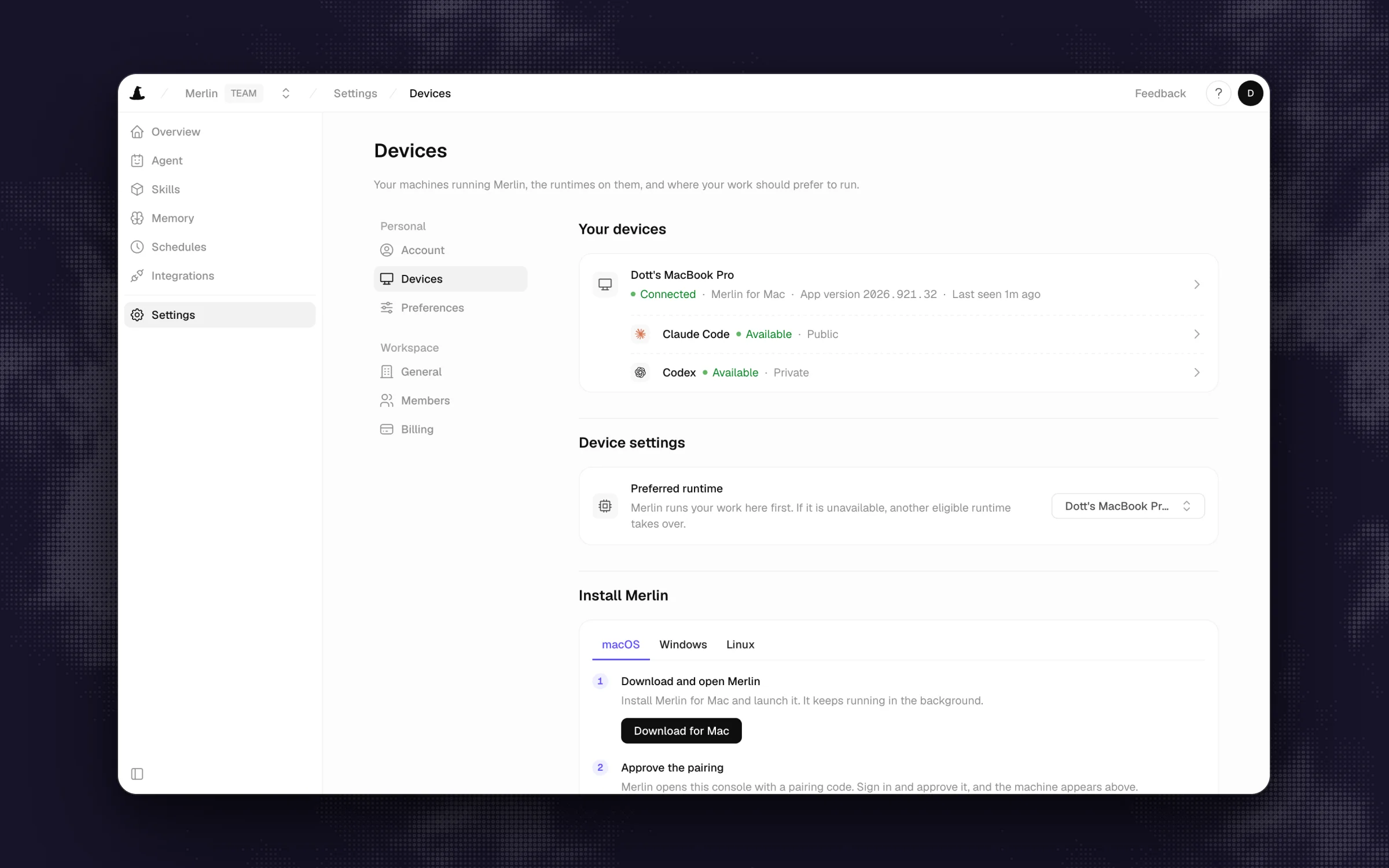 Settings → Devices shows each machine's agents side by side and which one takes your requests by default.
Tip: a public runtime uses the machine owner's local files, credentials, enabled skills, MCP servers and model subscription. Check what your checkout has access to before sharing it, and adjust the concurrency limit (default is 4 simultaneous tasks, configurable from 1 to 16) to match your hardware.
6. Write an issue an agent can finish
A local coding agent has your codebase, your test runner and your instructions files, and it still cannot read your mind. Scope the Linear issue the way you would write a ticket for a new engineer on their second day: one clear outcome, the repository name, how to reproduce the problem and the command that proves it is fixed.
If your machine has multiple repositories checked out, name the project in the issue body. Merlin uses that name to move into the right local checkout so that directory's CLAUDE.md or AGENTS.md applies.
Title: Fix trial banner showing after upgrade

Project: web app (repo acme/web)
What is wrong: users who upgrade during the trial still see "3 days left" in the top bar until they hard reload.
Done when: the banner disappears immediately after a successful upgrade mutation, and a unit test covers the state change.
Verify with: pnpm test billing
7. Delegate it and steer from the agent session
Open the issue in Linear, click the Delegate field (or @mention the agent in a comment) and select Merlin. Linear opens an agent session on the issue, and Merlin moves it to In Progress when it starts.
Inside the session, you will see the agent's thoughts, its step-by-step plan, one action per tool call and a final response linking the pull request. If the agent heads down the wrong path, reply directly in the session thread to steer it, or click the session's Stop button to cancel the run. You can also pick the model or effort per ticket in plain words inside the issue or session, such as "use Codex" or "use max effort".
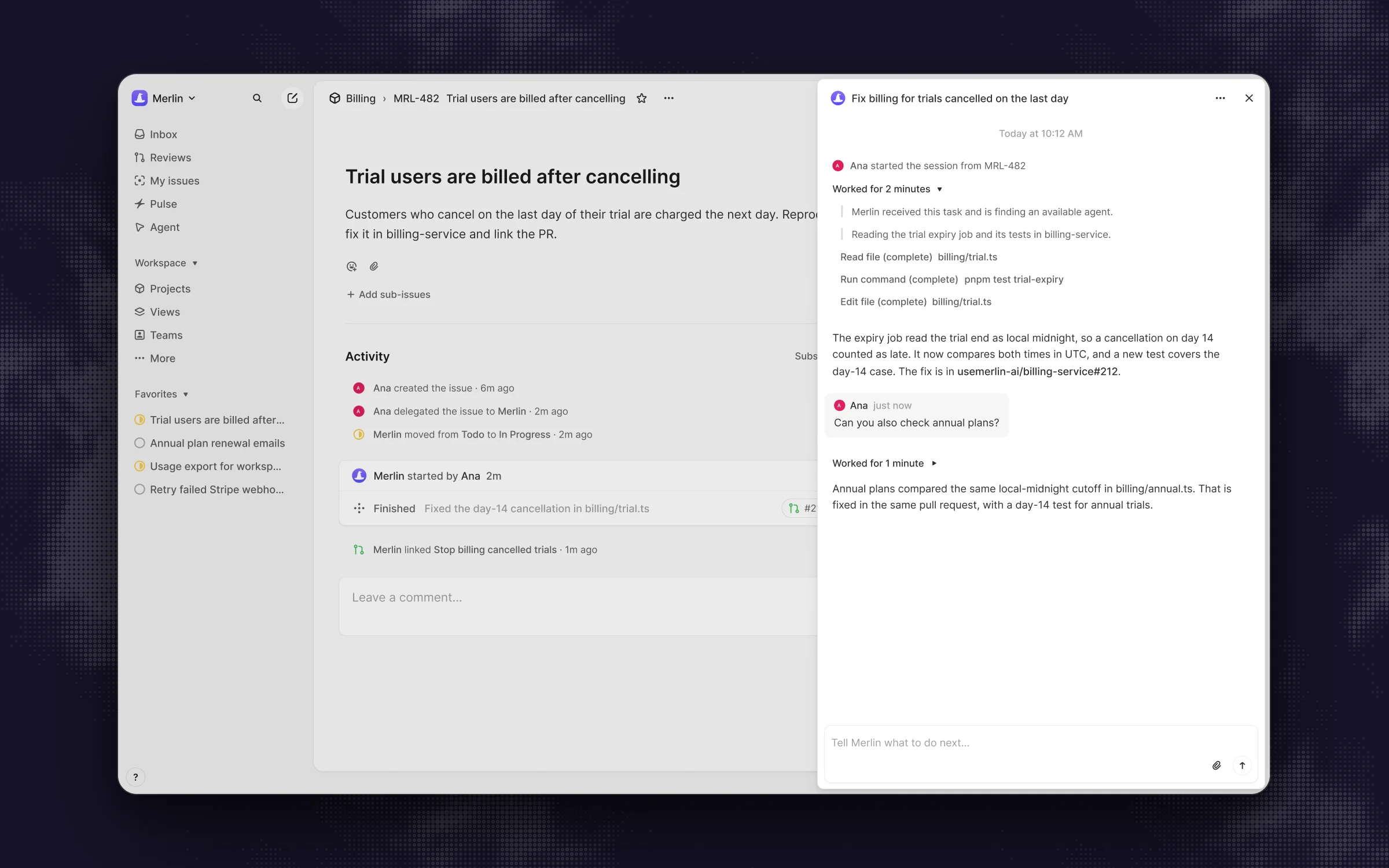 The agent session on the issue is where you watch, steer and stop the run. A follow-up continues the same task.
The pull route: Linear MCP in your terminal
Sometimes you are already sitting in your terminal and just want your running Claude Code or Codex session to read a ticket's description or post a comment. For that job, use Linear's official MCP server.
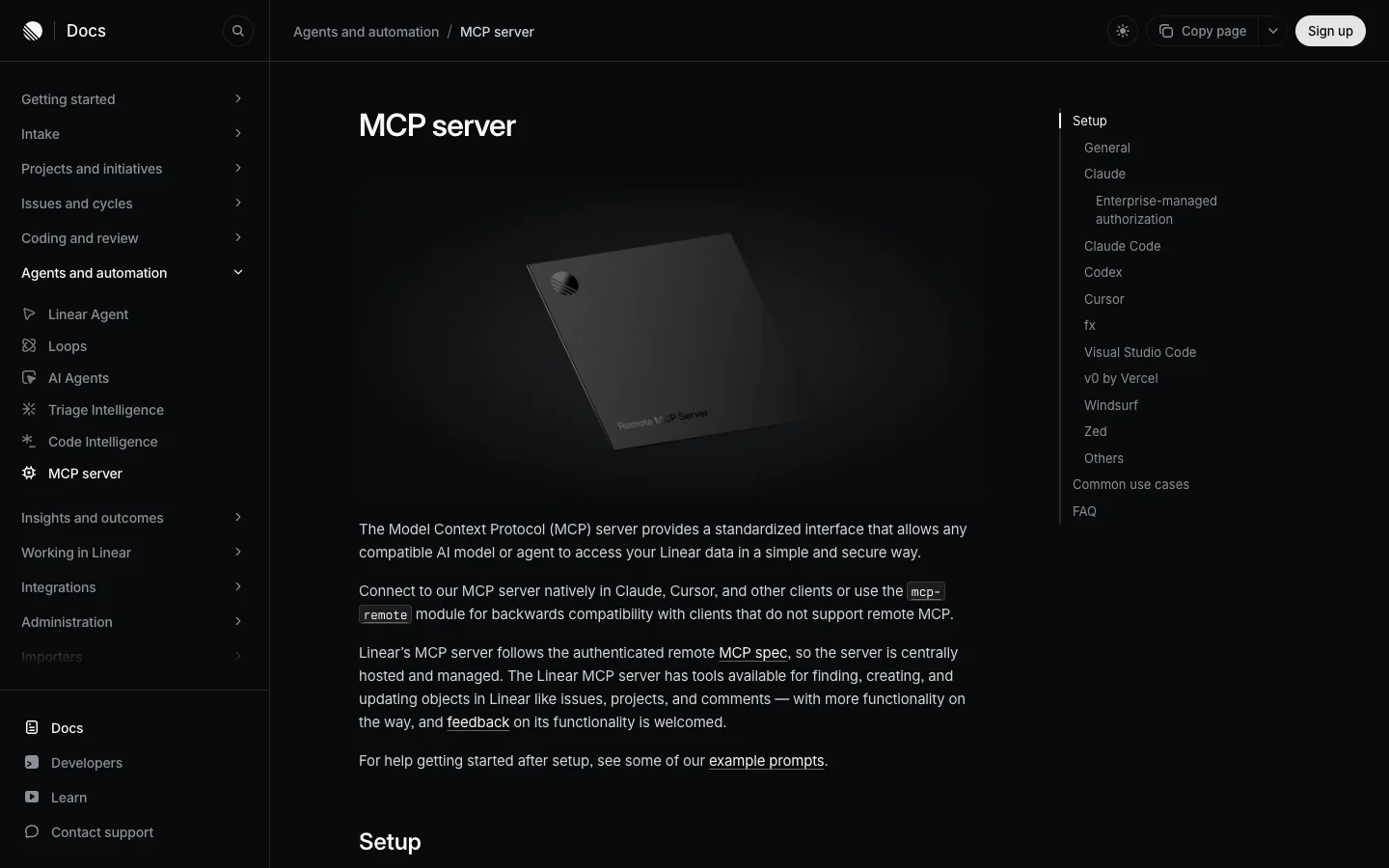 Linear's MCP server gives your terminal agent read and write access to issues. Linear itself never sees an agent.
Run one command to add the remote server, then sign in through OAuth:
# Claude Code
claude mcp add --transport http linear-server https://mcp.linear.app/mcp
# then run /mcp inside Claude Code to sign in

# Codex
codex mcp add linear --url https://mcp.linear.app/mcp
codex mcp login linear
Keep the boundary in mind: MCP is a user-authenticated tool server. Most "Linear + Claude Code" tutorials stop here, and then readers wonder why Claude Code is missing from Linear's Delegate menu. With MCP alone, Linear never sees an agent app, there is no live agent session on the issue, and every comment or status change shows up as your personal user account.
Common problems
- Nothing happens after you delegate. The host machine is asleep or the bridge client is closed. Wake the machine, make sure the Merlin app or daemon is running, and check that the device reads Connected in settings. Closing a laptop lid at the end of the day is the usual cause.
- The run stops at a permission prompt or does nothing in headless mode. When running custom scripts or self-hosted bridges with
claude -pand no permission mode set, tool calls that require approval are automatically denied unless pre-approved with an allow rule or hook (Claude Code permission modes). ReservebypassPermissionsfor isolated containers or VMs. For Codex,codex execdefaults to a read-only sandbox with network disabled, and--full-autois no longer supported, so pass--sandbox workspace-writewhen the agent needs to edit files (Codex non-interactive mode). Whatever bridge you use, run one task end to end in step 1 so you see these stops before a teammate does. - The agent works in the wrong repo or collides with another issue. Cloud integrations like Codex in Linear always run against the default branch of the first repository in the environment's repo map. Locally, always name the project in the issue body so the bridge enters the right checkout. If you run two issues in the same folder at once, their edits will collide: use a separate Git worktree per issue (
claude --worktree fix-trial-banner, which Cyrus also creates automatically per ticket). - The webhook never arrives on a self-hosted bridge. Linear requires a public HTTPS URL, and free
trycloudflare.comquick tunnels generate a brand-new URL every time the process restarts. Your receiver also has to follow Linear's agent timing rules: respond to the webhook within 5 seconds and post a first agent activity within 10 seconds. - The agent session says it cannot find your account. The person who clicked Delegate in Linear has not connected their personal Linear account under Settings → Account, or they connected an account belonging to a different Linear organization.
- The code is written, and the pull request never opens. The local checkout is missing Git push credentials or an active GitHub CLI session. Run
gh auth statusandgit pushmanually once on that machine to verify.
FAQ
Anthropic does not offer a built-in Linear agent for Claude Code, and the feature request on GitHub remains open. To delegate an issue to Claude Code on your own machine, you install a bridge app like Merlin or Cyrus that registers as a Linear agent and runs the Claude Code already signed in on your machine, or you use Linear's cloud coding sessions to run it in Linear's sandbox.
No. Assigning an issue to OpenAI's official Codex app or mentioning @Codex starts a Codex cloud chat against a GitHub-connected cloud environment. The advantage of OpenAI's cloud route is that it keeps working while your computer is asleep, while a bridge like Merlin or Cyrus is required if you want Codex to run on your own hardware.
In Linear, assigning sets the human owner of the issue, while delegating sets an AI agent in the separate delegate field to do the work. The human assignee stays attached to the ticket and remains responsible for reviewing and shipping the result.
You do not need an API key if your bridge uses the agent's existing CLI login. Merlin drives the Claude Code or Codex installation already signed in on the host machine, keeping usage on your existing Claude Pro, Claude Max or ChatGPT plan. Cyrus accepts either provider API keys or a Claude subscription token generated with claude setup-token.
A local agent cannot start a run until its host computer is awake, online and running the bridge client. If your team delegates issues across time zones, run the bridge on an always-on desktop or Linux server, or connect a second teammate's machine to the workspace.
If you are working solo in the terminal, add Linear's MCP server above. If your team wants to click Delegate in Linear and run jobs on your own hardware, put Merlin or Cyrus on an always-on machine, or pick Codex in Linear or Linear's coding sessions if you would rather nothing ran on your own computers. Start by delegating one small, well-scoped bug and read its agent session end to end before handing over bigger work.
Try Merlin for free
Hand work to Claude Code and Codex from Slack, Linear and GitHub. Free for 14 days, no API keys, no card required.
Get started for free